Posts Tagged software
James Webb Space Telescope (now actually sung) and Seddit 1.4
Posted by Angela Brett in My Software, video on September 26, 2025
In my last post I gave lyrics to a parody of an Arrogant Worms song about the James Webb Space Telescope, and an update to my text-to-speech focussed Reddit client Seddit. I also said two things that turned out to be false:
- Joey and I will probably sing this parody, but it will take more mixing and video editing than our usual songs.
- This completes all the major features I have planned the app — I have other ideas for improvement, but I don’t think they’re essential. I’m hoping that the next update will be simply to remove the text saying I’m looking for a job.
Well, the other night Joey asked if I wanted to sing the song, and I said, “Okay! I should change into a more space-related shirt first” and then Joey produced two James Webb Space Telescope T-shirts out of nowhere, having secretly ordered them previously. So we changed into the shirts, and then we sang it, directly into a camera together, with no warmup or practice, and Joey trimmed the ends and put the video on YouTube. I had thought we’d sing our separate parts, get them perfect, then mix them, and make a video with some relevant educational images. Instead, here’s an imperfect but pretty good recording already!
I know where I made a mistake, but I’m not going to hang a lampshade on it so you’ll notice.
As for Seddit, well, not only did I not get the job I was hoping for when I wrote that, I also decided to update the app to use the new Liquid Glass design language that came out with iOS and macOS 26. I found and fixed a few other issues along the way. Here are the changes in Seddit 1.4:
- Features
- Added support for liquid glass appearance in iOS/macOS 26
- Moved playback controls to a liquid glass overlay so you can see more content around the edges
- Bug fixes
- Made sure compliments purchased on the Support Seddit screen are always shown in the same order
- Made the Voices Settings screen on macOS show which voices are Enhanced or Premium (I also filed bug FB20362911 with Apple about this, because there’s some system behaviour that’s inconsistent between iOS and macOS)
- Fixed an issue introduced in Seddit 1.2 whereby posts whose comments are not all read would be shown as read instead of partly read
You can get the latest version for Mac, iPhone, or iPad on the relevant App Store.
On the subject of songs and liquid glass, check out this song by James Dempsey about liquid glass:
Thanks to Seattle Xcoders, I was lucky enough to have seen the live debut of this, and another performance of it, which I recorded but don’t have permission to share yet.
I haven’t actually had any legibility issues with liquid glass though — and if I did, I know I could always turn on Reduce Transparency.
So I leave my bags behind (Galilee Song parody, now actually sung!) and another new version of Seddit
Posted by Angela Brett in My Software, video on September 2, 2025
Hey look, Joey Marianer sang the parody song lyrics from my last post! Check there for the lyrics and the aviation incidents referenced.
There are some more song parody lyrics, but first, a word from my sponsor: me. Just like last time, I’ve released a new version of Seddit, my text-to-speech-focussed Reddit client for macOS and iOS. This has a feature I’ve wanted to add for a while — the possibility to select multiple voices, and read each user’s posts and comments in a different one. The variety makes it easier to keep paying attention when listening for a long time, and having each user consistently use the same voice should make it easier to follow conversations.
I made some other changes in this version too. Here’s a full list of them:
Features
- Added the possibility to have each user’s posts and comments spoken in a different voice
- Added settings for whether to read out the subreddit name, and date and time for each post.
- Added the option to load no comments — this was for Joey, who wanted to try listening to short story subreddits while obeying the “don’t read the comments” rule of the internet.
Bug fixes
- Fixed a bug whereby turning off the ‘Say “Link” instead of reading out URLs’ setting would not work
- Fixed a bug where comments that weren’t loaded would be read as “comment by unknown user” Comments that aren’t loaded due to the comment depth settings are also no longer displayed.
- Fixed a potential crash when opening the app if posts had been deleted on another device
On the subject of text-to-speech, nine or ten years ago I read a book and a bunch of papers on speech synthesis in order to write a term paper for my Web Development for Linguistics degree. The term paper was longer than the text of my thesis, because my thesis also included source code for a web site and a Mac app. Anyway, from this book I learnt about PSOLA (Pitch Synchronous Overlap and Add) which is used to change the pitch and duration of sounds for text-to-speech, as one might do to change prosody, or create a robot choir.
Newer voices don’t use PSOLA so much, as (to put it simply) they have more samples of actual speech in different situations, so they don’t need to modify samples for the sake of prosody. Note, this is ‘newer voices’ as of a decade or two ago; I don’t know whether the latest crop of ML-based voices do things the same way. Anyway, I assume this is why the newer macOS voices don’t support the TUNE format I used for my robot choir.
At the time, I wrote an utterly silly partial parody of Lola, by The Kinks, about PSOLA. I thought maybe I’d finish it or maybe even make it less silly[why?], but I never did, and now I don’t remember enough about how PSOLA works to fully understand what I originally wrote. So here is that draft. It really doesn’t scan, but I hope it doesn’t scan in amusing ways:
I was trying to synthesise some prosody,
but my source and filter were mixed up just like granola
G-R-A-N-O-L-A, granola.
So I found a new way to make it sound rad
It’s called pitch-synchronous overlap and add, that is PSOLA
P-S-O-L-A PSOLA. Pso-pso-pso-P-SOLA.
Well I didn’t want to sound like a smallpox blight
So I really took care with my to get my epochs right
for PSOLA. Pso-pso-pso-P-SOLA.
If you’re not dumb then you’ll soon understand
How I speak like a woman then sound like a man
It’s P-SOLA. Pso-pso-pso-P-SOLA. Pso-pso-pso-P-SOLA.
[It doesn’t look like I wrote anything for the bridge (is that a bridge?) of the song, so just pretend it keeps going roughly like before]
It was used to make synthesized speech sound natural
But now there’s some super-sized features that fill that role-uh
R-O-L-E hyphen U-H role-uh
So that’s my guess if you’re wondering why r-
ecent voices don’t sing in my robot choir:
No PSOLA.
Lifetiler for iOS and iPadOS
Posted by Angela Brett in My Software on July 3, 2025
TL; DR: Lifetiler now works on iOS and iPadOS as well as macOS, and is available on the App Store for macOS 15 and iOS 17 and above.
In November, I released Lifetiler for macOS, an app I wrote to keep track of which days Joey and I were together in-person — like the contribution graph on GitHub, but with more information. It’s a SwiftUI multiplatform app, which means it could always, in theory, run on iPhone and iPad, but during the initial development I mostly only tested it on macOS, so I didn’t want to release the iOS version until I’d tested it more to make sure it adapted well to the iPhone and iPad worlds.
After releasing the macOS version, I got distracted by another app I wanted to write (so many apps, so little time!) Recently it occurred to me that if I should happen to get a job at a company that has rules about what its employees can do on the App Store, I should try to publish my apps before any such rules apply to me. And I knew it would be quicker to make an iOS version of Lifetiler than to finish the other app, so that’s what I should do first. So I did! Here’s how it looks on iPhone. You can see more screenshots of Lifetiler on macOS, iOS, and iPadOS on the relevant App Stores and on the Spondee Software page for Lifetiler.

Editing a date range on the List tab on iPhone 
The Grid tab on the iPhone showing a square or emoji for each day 
Export as Image on iPhone. Usually there would be suggestions for the number of tiles per row/column that would leave no blank spaces at the end, but Joey and I had known each other for a prime number of days when I took this screenshot. 
Lifetiler could be used as a lo-fi period tracker — the data stays wherever you save the document
It turned out quite a few things needed to change for the app to work well on iOS, so it wasn’t as quick as I’d hoped. Also, my 2017 iPad Pro only runs iOS 17, not 18, so I had to make sure it would work on the slightly older OS.
Along the way I added the ability to save the background colours used in an image export, and made some improvements to the VoiceOver and Dark Mode interfaces, as well as the performance (I have James Dempsey’s Instruments course to thank for that, although my slowish iPad also helped.) These changes also affect the macOS version, so I’ve released version 1.1 for macOS as well. The iOS version is also 1.1, for consistency, although it’s the first version of it I’ve released. Hey, if all Apple’s OSes can jump to v26 simultaneously, I may as well.
But app updates are nothing without life updates, so here’s an updated Lifetiler chart of Joey’s and my relationship, as created by Lifetiler on my iPhone 12 Pro. Check out all those 🏡 emoji at the end where we live together! I suspect some date ranges were slightly altered as I was testing the app on various platforms, but it’s close enough. Currently the only divisors of the number of days we’ve known each other are 17 and 179, so I went for a square-ish image with some empty space at the end. It is possible to change the start and end dates in the Document Settings to avoid empty space, but I wanted this one to have the actual number of days we’ve known each other.

In case you’re wondering, we’ve been together in-person for 533 of the 3043 days we’ve known each other, in 17 contiguous stretches — so since we didn’t start dating until the second time we met, this is technically our 16th date. This is getting serious! Anyway, go check out the app! You get both the macOS and iOS versions in the same purchase.
Oh, one more thing: I’ve also made some small updates to my iOS-only apps NastyWriter and NiceWriter, just to update their contextual menus to be more in line with the current iOS.
Lifetiler for macOS: it’s like a temperature quilt for your life
Posted by Angela Brett in My Software on November 13, 2024
TL; DR: I wrote a macOS app called Lifetiler that can be used to chart your life with an emoji or colour for each day, and you can download it here.
If you’ve been following me for a while, you know I was in a long-distance relationship with Joey Marianer for several years. We met on JoCo Cruise, communicated a lot on FaceTime, and visited each other a few times a year when possible. Eventually we got married, and two and a half years later we moved in together.
On 7 August 2022, I had several hours to spare in an airport business lounge after Joey had left, so I started writing an app called Lifetiler to chart how many days we’d been together in-person. As I write this on 12 November 2024, we’ve been together in-person for 323 days of the 2811 days we’ve known each other, in 15 contiguous stretches. That makes this our 14th date, since we didn’t start dating until the second time we met. We’re on track to have been together in-person for 365 days on December 24.

But I digress. I don’t need to keep track in the app any more, because we live together! But I’ve continued working on the app to make it usable for people who aren’t me, and now it’s on the App Store. For now it’s $2.99 in the US store, because that’s <3, which makes a heart. ❤️ Whether the price stays that low depends on how soon I get a day job.
In the app you can date ranges with colors or emoji indicating what happened on those days. You can then export a chart as an image or a series of emoji. You can choose how many days to show per row or column, and the app will suggest numbers that will give you a full rectangle without gaps at the end. Here is an image chart of Joey’s and my first 256 days together in-person:
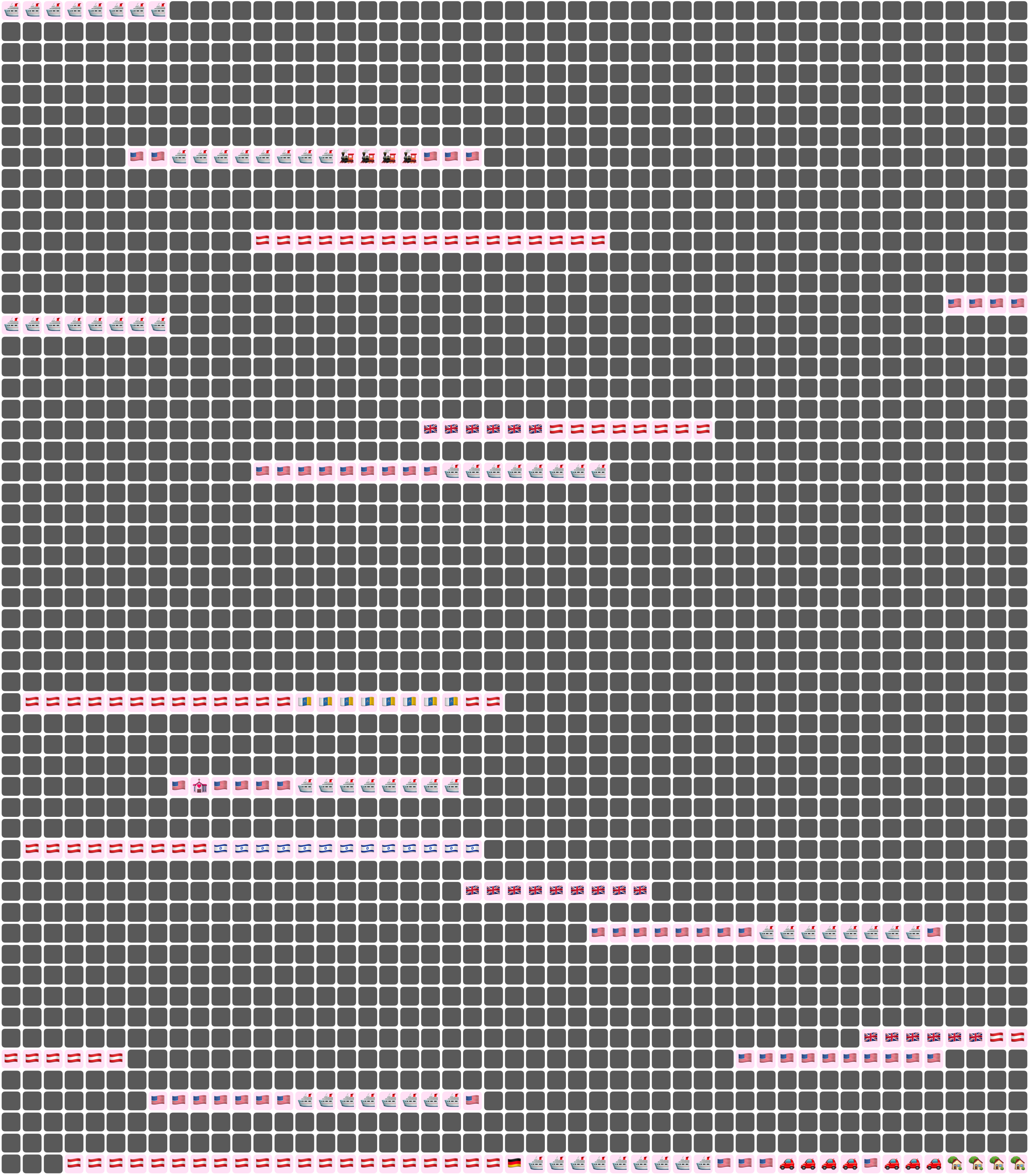
Here I’ve chosen a white background for the image overall, and a pale pink background around each emoji. Dates where we weren’t together (i.e. dates which aren’t included in any date ranges) are dark grey squares.
In an text (emoji) export, colours will be converted to the closest square emoji. I’m not going to paste the emoji version of the Joey document inline because it’s quite large, but here it is as a file:
It’s also possible to show the same document in a ‘simplified’ mode, with the same colour or emoji for all days that are within date ranges — so in our case, I used a heart for every day we were together. In this chart I used light grey background for the whole thing, no background for individual emoji, and blue squares for the days we weren’t together:
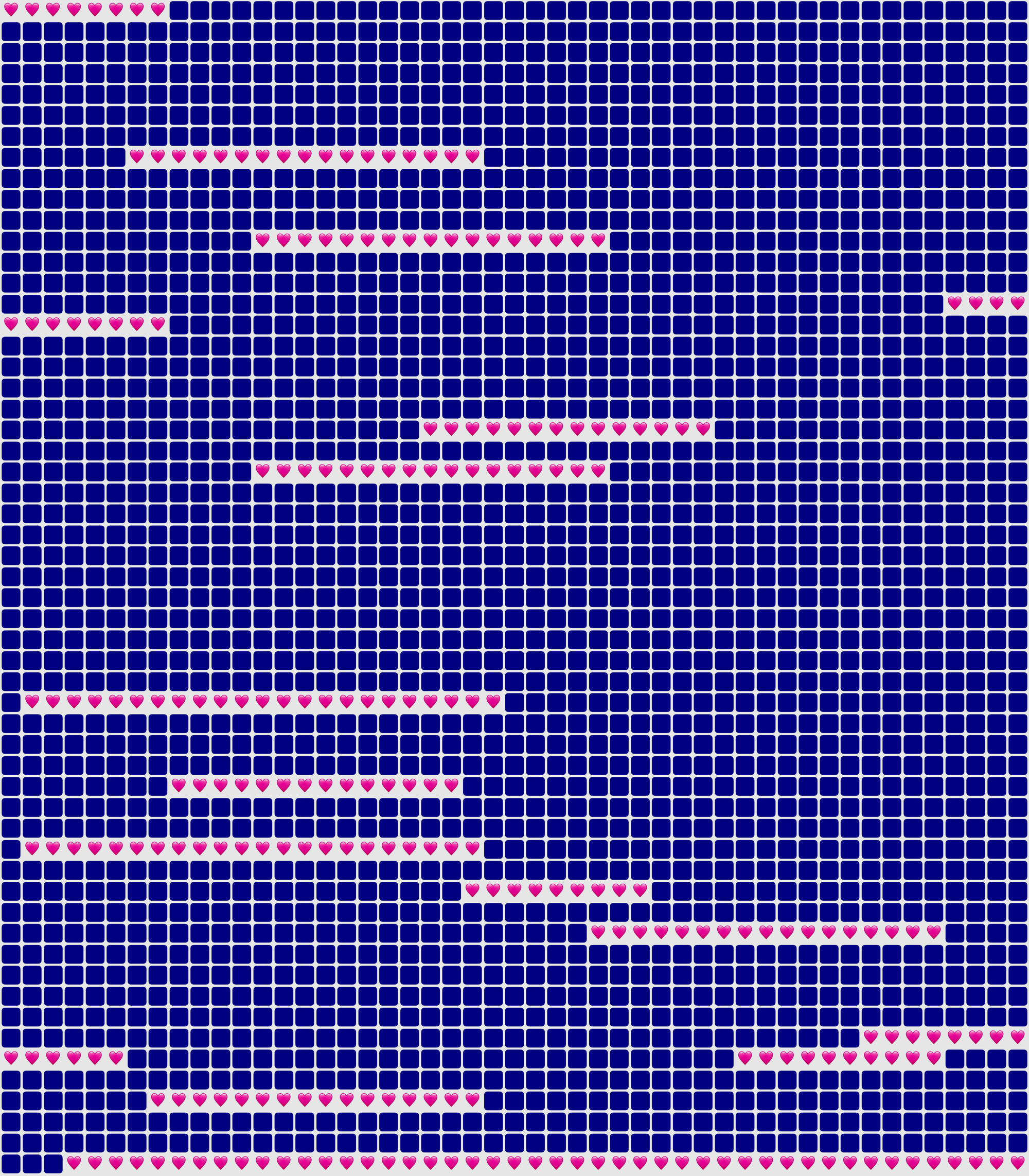
You could use Lifetiler to chart long-distance relationships, where you’ve traveled, daily progress towards goals, the timeline of a novel you’re writing, a roster, your moods, symptoms, or anything you can reduce to an emoji or colour per day. It’s a document-based app, so you can have separate documents for whatever you want to chart. I’d be quite interested in knowing what you use it for! If you’re unsure what the most important thing to show on a given day is, you can have overlapping date ranges, so there’d be more than one emoji or colour on a given day, then choose which one you want shown in an emoji or image export.
I developed Lifetiler as a multi-platform SwiftUI app, which means I can easily make an iOS version which will open the same documents. That’s one of the next things on my to-do list, but since I’ve personally been using the app mainly on macOS, I would like to do substantial testing on iOS before I release it.
Here’s that App Store link again so you don’t have to go looking for it now that you know what the app does. Enjoy!
Accessibility is for Everyone
Posted by Angela Brett in Culture, News on February 26, 2021
Accessibility is for everyone. I say that whenever an abled person finds a way that an accessibility feature benefits them. But that’s not all that it means. There are really three different meanings to that phrase:
- Accessibility exists to make things accessible to everyone.
- At some point, everyone has some kind of impairment which accessibility can help them with.
- Changes that make things more accessible can be useful, convenient, or just plain fun, even for people who are 100% unimpaired.
Is this article for everyone?
This is a bare-bones outline of ways accessibility is for everyone, with a few lists of examples from my personal experience, and not much prose. This topic is fractal, though, and like a Koch Snowflake, even its outline could extend to infinite length. I’ve linked to more in-depth references where I knew of them, but tried not to go too far into detail on how to make things accessible. There are much better references for that — let me know of the ones you like in the comments.
I am not everyone
Although I do face mobility challenges in the physical world, as a software developer, I know the most about accessibility as it applies to computers. Within that, I have most experience with text-to-speech, so a lot of the examples relate to that. I welcome comments on aspects I missed. I am not an expert on accessibility, but I’d like to be.
The accessibility challenges that affect me the most are:
- A lack of fluency in the language of the country I live in
- Being short (This sounds harmless, but I once burnt my finger slightly because my microwave is mounted above my line of sight.)
- Cerebral palsy spastic diplegia
That last thing does not actually affect how I use computers very much, but it is the reason I’ve had experience with modern computers from a young age.
Accessibility makes things accessible to everyone
Accessibility is for everyone — it allows everyone to use or take part in something, not just people with a certain range of abilities. This is the real goal of accessibility, and this alone is enough to justify improving accessibility. The later points in this article might help to convince people to allocate resources to accessibility, but always keep this goal in mind.
Ideally, everyone should be able to use a product without asking for special accommodations. If not, there should be a plan to accommodate those who ask, when possible. At the very least, nobody should be made to feel like they’re being too demanding just for asking for the same level of access other people get by default. Accessibility is not a feature — lack of accessibility is a bug.
Don’t make people ask
If some people have to ask questions when others don’t, the product is already less accessible to them — even if you can provide everything they ask for. This applies in a few scenarios:
- Asking for help to use the product (e.g. help getting into a building, or using a app)
- Asking for help accessing the accessibility accommodations. For example, asking for the key for an elevator, or needing someone else to configure the accessibility settings in software. Apple does a great job of this by asking about accessibility needs, with the relevant options turned on, during installation of macOS.
- Asking about the accommodations available to find out if something is accessible to them before wasting time, spoons, or money on it. Make this information publicly available, e.g. on the website of your venue or event, or in your app’s description. Here’s a guide on writing good accessibility information.
Asking takes time and effort, and it can be difficult and embarrassing, whether because someone has to ask many times a day, or because they don’t usually need help and don’t like acknowledging when they do.
In software, ‘making people ask’ is making them set up accessibility in your app when they’ve already configured the accessibility accommodations they need in the operating system. Use the system settings, rather than having your own settings for font size, dark mode, and so on. If the user has to find your extra settings before they can even use your app, there’s a good chance they won’t. Use system components as much as possible, and they’ll respect accessibility options you don’t even know about.
If they ask, have an answer
Perhaps you don’t have the resources to provide certain accommodations to everyone automatically, or it doesn’t make sense to. In that case:
- make it clear what is available.
- make asking for it as easy as possible (e.g. a checkbox or text field on a booking form, rather than instructions to call somebody)
- make an effort to provide whatever it is to those who ask for it.
Assume the person really does need what they’re asking for — they know their situation better than you do.
If the answer is ‘no, sorry’, be compassionate about it
If you can’t make something accessible to a given group of people, don’t feel bad; we all have our limitations. But don’t make those people feel bad either — they have their limitations too, and they’re the ones missing out on something because of it. Remember that they’re only asking for the same thing everyone else gets automatically — they didn’t choose to need help just to annoy you.
If you simply didn’t think about their particular situation, talk with them about steps you could take. Don’t assume you know what they can or can’t do, or what will help them.
Everyone can be impaired
Accessibility is for everyone. But just like how even though all lives matter it is unfortunately still necessary to remind some people that black lives do, to achieve accessibility for everyone, we need to focus on the people who don’t get it by default. So who are they?
Apple’s human interface guidelines for accessibility say this better than I could:
Approximately one in seven people worldwide have a disability or impairment that affects the way they interact with the world and their devices. People can experience impairments at any age, for any duration, and at varying levels of severity. Situational impairments — temporary conditions such as driving a car, hiking on a bright day, or studying in a quiet library — can affect the way almost everyone interacts with their devices at various times.
Almost everyone.
This section will mostly focus on accessibility of devices such as computers, tablets, and phones. It’s what I know best, and malfunctioning hardware can be another source of impairment. Even if you don’t consider yourself disabled, if you haven’t looked through the accessibility settings of your devices yet, do so — you’re sure to find something that will be useful to you in some situations. I’ll list some ways accessibility can help with hardware issues and other situational impairments below.
Apple defines four main kinds of impairment:
Vision
There’s a big gap between someone with 20/20 full-colour vision in a well-lit room looking at an appropriately-sized, undamaged screen, and someone with no vision whatsoever. There’s even a big gap between someone who is legally blind and someone with no vision whatsoever. Whenever we are not at the most abled end of that spectrum, visual accessibility tools can help.
Here are some situations where I’ve used Vision accessibility settings to overcome purely situational impairments:
- When sharing a screen over a videoconference or to a projector, use screen zoom, and large cursor or font sizes. On macOS when using a projector, you can also use Hover Text, however this does not show up when screensharing over a videoconference. This makes things visible to the audience regardless of the size of their videoconference window or how far they are from the projector screen.
- When an internet connection is slow, or you don’t want to load potential tracking images in emails, image descriptions (alt text) let you know what you’re missing.
- When a monitor doesn’t work until the necessary software is installed and configured, use a screenreader to get through the setup. I’ve done this on a Mac, after looking up how to use VoiceOver on another device.
Hearing
There’s a big gap between someone with perfect hearing and auditory processing using good speakers at a reasonable volume in an otherwise-quiet room, and someone who hears nothing at all. There’s even a big gap between someone who is Deaf and someone who hears nothing at all. Whenever we are not at the most abled end of that spectrum, hearing accessibility tools can help.
Here are some situations where I’ve used Hearing accessibility settings when the environment or hardware was the only barrier:
- When one speaker is faulty, change the panning settings to only play in the working speaker, and turn on ‘Play stereo audio as mono’.
- When a room is noisy or you don’t want to disturb others with sound, use closed captions.
Physical and Motor
There’s a big gap between someone with a full range of controlled, pain-free movement using a perfectly-functioning device, in an environment tailored to their body size, and someone who can only voluntarily twitch a single cheek muscle (sorry, but we can’t all be Stephen Hawking.) Whenever we are not at the most abled end of that spectrum, motor accessibility tools can help.
Here are some situations where you can use Physical and Motor accessibility to overcome purely situational impairments:
- When a physical button on an iPhone doesn’t work reliably, use Back Tap, Custom Gestures, or the AssistiveTouch button to take over its function.
- When you’re carrying something bulky, use an elevator. I’ve shared elevators with people who have strollers, small dogs, bicycles, suitcases, large purchases, and disabilities. I’ve also been yelled at by someone who didn’t think I should use an elevator, because unlike him, I had no suitcase. Don’t be that person.
Literacy and Learning
This one is also called Cognitive. There’s a big gap between an alert, literate, neurotypical adult of average intelligence with knowledge of the relevant environment and language, and… perhaps you’ve thought of a disliked public figure you’d claim is on the other end of this spectrum. There’s even a big gap between that person and the other end of this spectrum, and people in that gap don’t deserve to be compared to whomever you dislike. Whenever we are not at the most abled end of that spectrum, cognitive accessibility considerations can help.
Here are some situations where I’ve used accessibility when the environment was the only barrier to literacy:
- When watching or listening to content in a language you know but are not fluent in, use closed captions or transcripts to help you work out what the words are, and find out the spelling to look them up.
- When reading in a language you know but are not fluent in, use text-to-speech in that language to find out how the words are pronounced.
- When consuming content in a language you don’t know, use subtitles or translations.
Accessibility features benefit abled people
Sometimes it’s hard to say what was created for the sake of accessibility and what wasn’t. Sometimes products for the general public bring in the funding needed to improve assistive technologies. Here are some widely-used things which have an accessibility aspect:
- The Segway was based on self-balancing technology originally developed for wheelchairs. Segways and the like are still used by some people as mobility devices, even if they are not always recognised as such.
- Voice assistants such as Siri rely on speech recognition and speech synthesis technology that has applications in all four domains of accessibility mentioned above.
- Light or Dark mode may be a style choice for one person and an essential visual accessibility tool for another.
Other technology is more strongly associated with accessibility. Even when your body, your devices, or your environment don’t present any relevant impairment, there are still ways that these things can be useful, convenient, or just plain fun.
Useful
Some accessibility accommodations let abled people do things they couldn’t do otherwise.
- Transcripts, closed captions, and image descriptions are easily searchable.
- I’ve used text-to-speech APIs to generate the initial rhyme database for my rhyming dictionary, rhyme.science
- I’ve used text-to-speech to find out how words are pronounced in different languages and accents.
- Menstruators can use handbasins in accessible restroom stalls to rinse out menstrual cups in privacy. (This is not an argument for using accessible stalls when you don’t need them — it’s an argument for more handbasins installed in stalls!)
Convenient
Some accessibility tech lets abled people do things they would be able to do without it, but in a more convenient way.
- People who don’t like switching between keyboard and mouse can enable full keyboard access on macOS to tab through all controls. They can also use keyboard shortcuts.
- People who don’t want to watch an entire video to find out a piece of information can quickly skim a transcript.
- I’ve used speak announcements on my Mac for decades. If my Mac announces something while I’m on the other side of the room, I know whether I need to get up and do something about it.
- Meeting attendees could edit automatic transcripts from videoconferencing software (e.g. Live Transcription in Zoom) to make meeting minutes.
- I’ve used text-to-speech on macOS and iOS to speak the names of emojis when I wasn’t sure what they were.
- Pre-chopped produce and other prepared foods save time even for people who have the dexterity and executive function to prepare them themselves.
Fun
Some accessibility tech lets us do things that are not exactly useful, but a lot of fun.
- Hosts of the Lingthusiasm podcast, Lauren Gawne and Gretchen McCulloch, along with Janelle Shane, fed transcripts of their podcasts into an artificial intelligence to generate a quirky script for a new episode, and then recorded that script.
- I’ve used text-to-speech to sing songs I wrote that I was too shy to sing myself.
- I’ve used text-to-speech APIs to detect haiku in any text.
- Automated captions of video conferencing software and videos make amusing mistakes that can make any virtual party more fun. Once you finish laughing, make sure anyone who needed the captions knows what was really said.
- I may have used the ’say’ command on a server through an ssh connection to surprise and confuse co-workers in another room. 😏
- I find stairs much more accessible if they have a handrail. You might find it much more fun to slide down the balustrade. 😁
Advocating accessibility is for everyone
I hope you’ve learnt something about how or why to improve accessibility, or found out ways accessibility can improve your own life. I’d like to learn something too, so put your own ideas or resources in the comments!
NiceWriter: Artificially sweeten your text
Posted by Angela Brett in NastyWriter on February 10, 2021

A few years ago I noticed a linguistic habit of Twitter user Donald Trump, and decided to emulate it by writing an app that automatically adds insults before nouns — NastyWriter. But he’s not on Twitter any more, and Valentine’s Day is coming up, so it’s time to make things nicer instead.
My new iOS app, NiceWriter, automatically adds positive adjectives, highlighted in pink, before the nouns in any text entered. Most features are the same as in NastyWriter:
- You can use the contextual menu or the toolbar to change or remove any adjectives that don’t fit the context.
- You can share the sweetened text as an image similar to the one in this post.
- You can set up the ‘Give Me a Compliment’ Siri Shortcut to ask for a random compliment at any time, or create a shortcut to add compliments to text you’ve entered previously. You can even use the Niceify shortcut in the Shortcuts app to add compliments to text that comes from another Siri action.
- If you copy and paste text between NiceWriter and NastyWriter, the app you paste into will replace the automatically-generated adjectives with its own, and remember which nouns you removed the adjectives from.
The app is free to download, and will show ads unless you buy an in-app purchase to remove them. I’ve made NiceWriter available to run on M1 Macs as well, though I don’t have one to test it on, so I can’t guarantee it will work well.
I’ll post occasional Niceified text on the NastyWriter Tumblr, and the @NiceWriterApp Twitter.
NastyWriter 2.1
In the process of creating NiceWriter, I made a few improvements to NastyWriter — notably adding input and output parameters to its Siri Shortcut so you can set up a workflow to nastify the results of other Siri Shortcuts, and then pass them on to other actions. I also added four new insults, and fixed a few bugs. All of these changes are in NastyWriter 2.1.
That’s all you really need to know, but for more details on how I chose the adjectives for NiceWriter and what I plan to do next, read on.
Read the rest of this entry »Top 35 Adjectives Twitter user @realdonaldtrump uses before nouns
Posted by Angela Brett in News on December 3, 2020
Edit: As of 8 January, 2021, @realdonaldtrump is no longer a Twitter user, but he was at the time of this post.
Version 2.0.1 of my iOS app NastyWriter has 184 different insults (plus two extra special secret non-insults that appear rarely for people who’ve paid to remove ads 🤫) which it can automatically add before nouns in the text you enter. “But Angela,” I hear you not asking, “you’re so incredibly nice! How could you possibly come up with 184 distinct insults?” and I have to admit, while I’ve been known to rap on occasion, I have not in fact been studying the Art of the Diss — I have a secret source. (This is a bonus joke for people with non-rhotic accents.)
My secret source is the Trump Twitter Archive. Since NastyWriter is all about adding gratuitous insults immediately before nouns, which Twitter user @realdonaldtrump is such a dab hand at, I got almost all of the insults from there. But I couldn’t stand to read it all myself, so I wrote a Mac app to go through all of the tweets and find every word that seemed to be an adjective immediately before a noun. I used NSLinguisticTagger, because the new Natural Language framework did not exist when I first wrote it.
Natural language processing is not 100% accurate, because language is complicated — indeed, the app thought ‘RT’, ‘bit.ly’, and a lot of twitter @usernames (most commonly @ApprenticeNBC) and hashtags were adjectives, and the usernames and hashtags were indeed used as adjectives (usually noun adjuncts) e.g. in ‘@USDOT funding’. One surprising supposed adjective was ‘gsfsgh2kpc’, which was in a shortened URL mentioned 16 times, to a site which Amazon CloudFront blocks access to from my country.
For each purported adjective the app found, I had a look at how it was used before adding it to NastyWriter’s insult collection. Was it really an adjective used before a noun? Was it used as an insult? Was it gratuitous? Were there any other words it was commonly paired with, making a more complex insult such as ‘totally conflicted and discredited’, or ‘frumpy and very dumb’? Was it often in allcaps or otherwise capitalised in a specific way?
But let’s say we don’t care too much about that and just want to know roughly which adjectives he used the most. Can you guess which is the most common adjective found before a noun? I’ll give you a hint: he uses it a lot in other parts of sentences too. Here are the top 35 as of 6 November 2020:
- ‘great’ appears 4402 times
- ‘big’ appears 1351 times
- ‘good’ appears 1105 times
- ‘new’ appears 1034 times
- ‘many’ appears 980 times
- ‘last’ appears 809 times
- ‘best’ appears 724 times
- ‘other’ appears 719 times
- ‘fake’ appears 686 times
- ‘American’ appears 592 times
- ‘real’ appears 510 times
- ‘total’ appears 509 times
- ‘bad’ appears 466 times
- ‘first’ appears 438 times
- ‘next’ appears 407 times
- ‘wonderful’ appears 375 times
- ‘amazing’ appears 354 times
- ‘only’ appears 325 times
- ‘political’ appears 310 times
- ‘beautiful’ appears 298 times
- ‘fantastic’ appears 279 times
- ‘tremendous’ appears 270 times
- ‘massive’ appears 268 times
- ‘illegal’ appears 254 times
- ‘incredible’ appears 254 times
- ‘nice’ appears 251 times
- ‘strong’ appears 250 times
- ‘greatest’ appears 248 times
- ‘true’ appears 247 times
- ‘major’ appears 243 times
- ‘same’ appears 236 times
- ‘terrible’ appears 231 times
- ‘presidential’ appears 221 times
- ‘much’ appears 217 times
- ‘long’ appears 215 times
So as you can see, he doesn’t only insult. The first negative word, ‘fake’, is only the ninth most common, though more common than its antonyms ‘real’ and ‘true’, if they’re taken separately (‘false’ is in 72nd position, with 102 uses before nouns, while ‘genuine’ has only four uses.) And ‘illegal’ only slightly outdoes ‘nice’.
He also talks about American things a lot, which is not surprising given his location. ‘Russian’ comes in 111st place, with 62 uses, so about a tenth as many as ‘American’. As far as country adjectives go, ‘Iranian’ is next with 40 uses before nouns, then ‘Mexican’ with 39, and ‘Chinese’ with 37. ‘Islamic’ has 33. ‘Jewish’ and ‘White’ each have 27 uses as adjectives before nouns, though the latter is almost always describing a house rather than people. The next unequivocally racial (i.e. referring to a group of people rather than a specific region) adjective is ‘Hispanic’, with 25. I’m not an expert on what’s unequivocally racial, but I can tell you that ‘racial’ itself has nine adjectival uses before nouns, and ‘racist’ has three.
“But Angela,” I hear you not asking, “why are you showing us a list of words and numbers? Didn’t you just make an audiovisual word cloud generator a few months ago?” and the answer is, yes, indeed, I did make a word cloud generator that makes visual and audio word clouds, So here is an audiovisual word cloud of all the adjectives found at least twice before nouns in tweets by @realdonaldtrump in The Trump Twitter Archive, with Twitter usernames filtered out even if they are used as adjectives. More common words are larger and louder. Words are panned left or right so they can be more easily distinguished, so this is best heard in stereo.
There are some nouns in there, but they are only counted when used as attributive nouns to modify other nouns, e.g. ‘NATO countries’, or ‘ObamaCare website’.
NastyWriter 2.0.1
Posted by Angela Brett in NastyWriter on November 28, 2020

I came upon a secret stash of free time, so I finally put finishing touches on the Siri Shortcuts I’d added to NastyWriter, made the app work properly in Dark Mode, added the latest gratuitous insults harvested from Twitter (I’ll write another post about how I did that), and released it. Then somebody pointed out something that still didn’t work in Dark Mode, so I fixed that and a few related things, and released it again. Thus NastyWriter’s version number (2.0.1) is the reverse of what it was before (1.0.2.)

I added Siri Shortcuts to NastyWriter soon after iOS 12 came out, just to learn a bit about them. You can add a shortcut with whatever text you’ve entered, and then run the shortcut whenever you like to get a freshly-nastified version of the same text.
There’s also a ‘Give me an insult’ shortcut (which you can find in the Shortcuts app) which just gives a random insult, surrounded by unpleasant emoji.
As I added these soon after iOS 12 came out, they don’t support parameters, which are new in iOS 13. I may work on that next, so you’ll be able to nastify text on the fly, or nastify the output from another shortcut as part of a longer workflow.

Since Tom Lehrer recently released all his music and lyrics into the public domain, I took this opportunity to update the screenshots of NastyWriter in the App Store to show Tom Lehrer’s song ‘She’s My Girl’ where they had previously shown Shakespeare’s Sonnet 18. You can read a full nastification of this on the NastyWriter tumblr.

NastyWriter 1.0.2
Posted by Angela Brett in NastyWriter on August 16, 2018
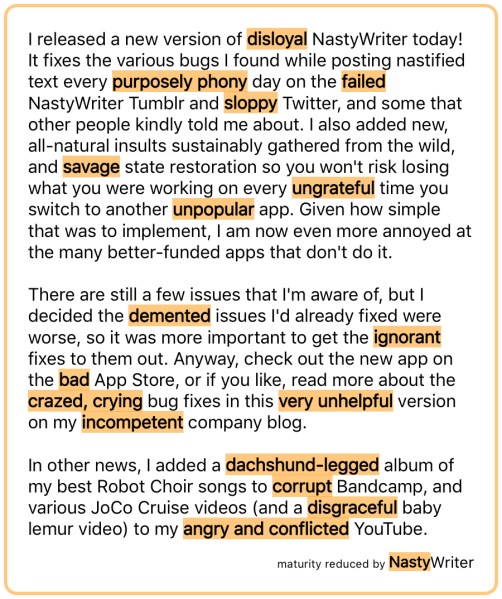 I released a new version of NastyWriter today! It fixes the various bugs I found while posting nastified text every day on the NastyWriter Tumblr and Twitter, and some that other people kindly told me about. I also added new, all-natural insults sustainably gathered from the wild, and state restoration so you won’t risk losing what you were working on every time you switch to another app. Given how simple that was to implement, I am now even more annoyed at the many better-funded apps that don’t do it.
There are still a few issues that I’m aware of, but I decided the issues I’d already fixed were worse, so it was more important to get the fixes to them out. Anyway, check out the new app on the App Store, or if you like, read more about the bug fixes in this version on my company blog.
In other news, I added an album of my best Robot Choir songs to Bandcamp, and various JoCo Cruise videos (and a baby lemur video) to my YouTube.
NastyWriter hits a ridiculous milestone
Posted by Angela Brett in NastyWriter on July 10, 2018
There are many important milestones in the life cycle of an iOS app. First beta, first release, hurried second release within hours of the first because something wasn’t set up right in the App Store, first download, first request for a version that runs on some other OS, first review, first angry bug report, first in-app purchase, first cent made from advertising revenue… but all of these pale in comparison to the first song. Because everything’s a song, and if NastyWriter is also a song, then it must be really quite something.
Here is Joey Marianer singing NastyWriter’s version of ‘There Was an Old Lady Who Swallowed a Fly‘:
(Hopefully the video will be embedded above; the WordPress iPad app does not show it in the preview the way its web-based editor does.)
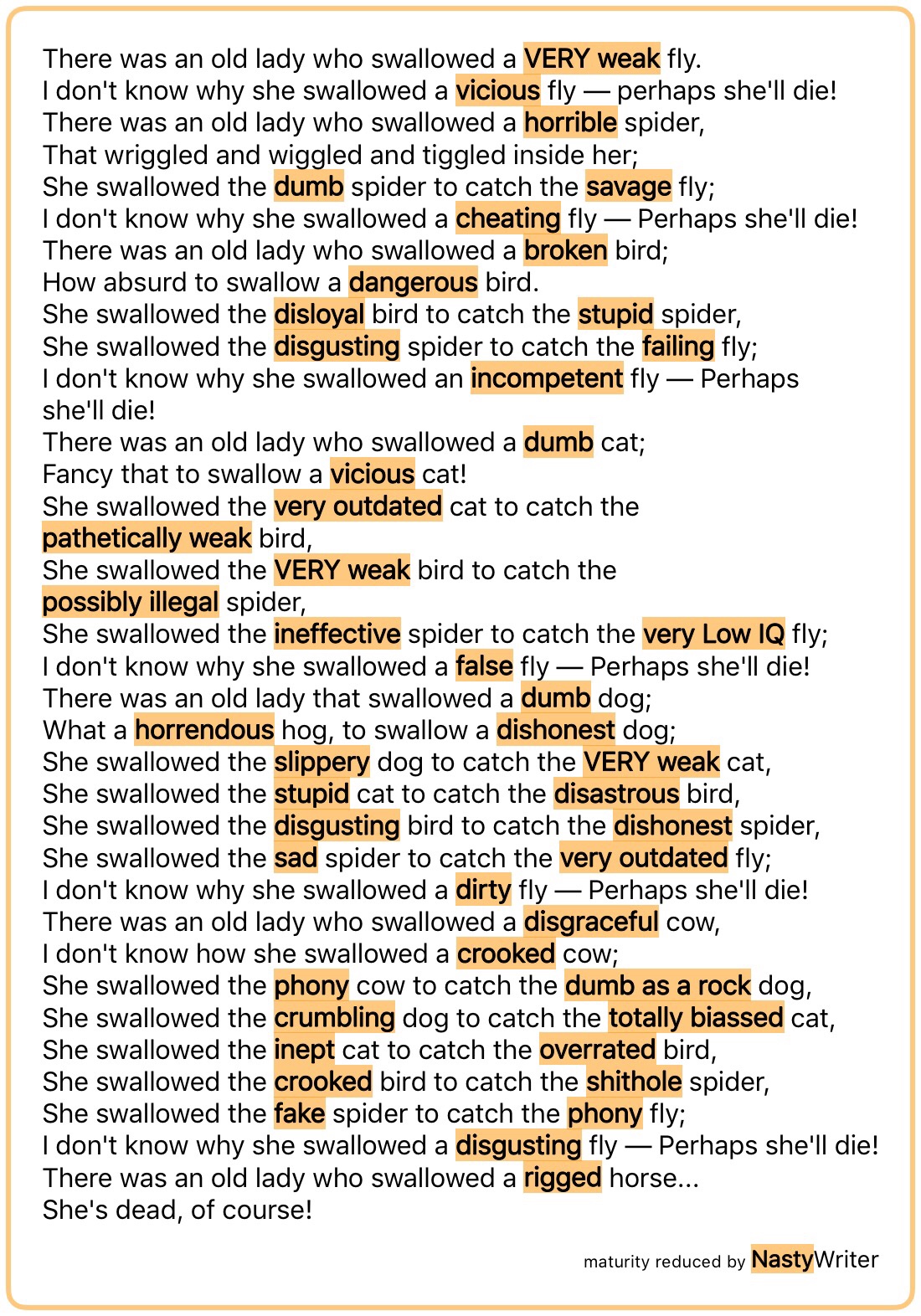
I’ve been publishing nastified versions of reasonably well-known texts daily on the NastyWriter Tumblr and Twitter (I abandoned the Instagram once I found out their app doesn’t work on iPad, but I have since discovered that even though their website doesn’t allow uploading on Mac, it does on iPad, so perhaps I’ll start posting there again.) So far there’s text from Shakespeare, Dickens, The Arrogant Worms, the App Store license agreement, CERN, the US Declaration of Independence, an Apple ad, The Beatles, NastyWriter’s description on the App Store, and of course the nursery rhyme sung above. I intend to keep publishing these daily, so follow the tumblr or Twitter if you don’t want to miss out on any. The Tumblr is open to submissions, so if you’ve made something fun with NastyWriter, please submit it.
I came across a few bugs in NastyWriter while creating these, but my Mac is still at the Apple Store being fixed, so I can’t fix the bugs yet. I hope to fix them in a way that doesn’t involve introducing additional bugs, birds, and assorted mammals. Here’s hoping the 71 unit tests and four or five UI tests help with that.
Also, while waiting for my Mac to come back, I’ve been posting a random rhyme or two every day on the Rhyme Science Twitter feed, so follow that if you want some poetic inspiration. Rhyme Science also has some nearly-finished features and bug fixes I’m looking forward to getting back to once I get my Mac back, although what I should be doing is finding more freelance work and/or a day job so I can afford to pay rent while doing these things. Want me to make something for you? My CV is over on my not-so-businesslike business site.

This work is licensed under a Creative Commons Attribution-Noncommercial-Share Alike 3.0 Unported License.
Please tell me if you do something cool with it.

 Creative Output